Convert external link in Excel file to human-readable format
Linking to other workbooks is a very common task in Excel. There are several ways to create an external reference (also called a link) to a cell range in another workbook.
According to Microsoft’s support website, an external reference is a reference to a cell or range on a worksheet in another Excel workbook, or a reference to a defined name in another workbook.
When an external reference is created, part of the other Excel workbook that is linked to will also be stored in the working workbook. Here is an example to visualize this.
First I have workbook Book1 with some data (randomly generated by DatabaseTestData.com).
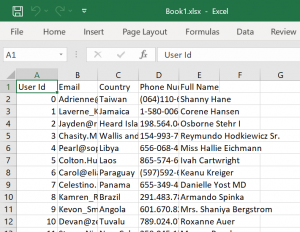
I’m going to do a VLOOKUP to find a value in workbook Book2 that is possibly present in Book1.
=VLOOKUP(A2, [Book1.xlsx]Sheet1!$A$1:$E$101, 5, FALSE)
The result in Book2:
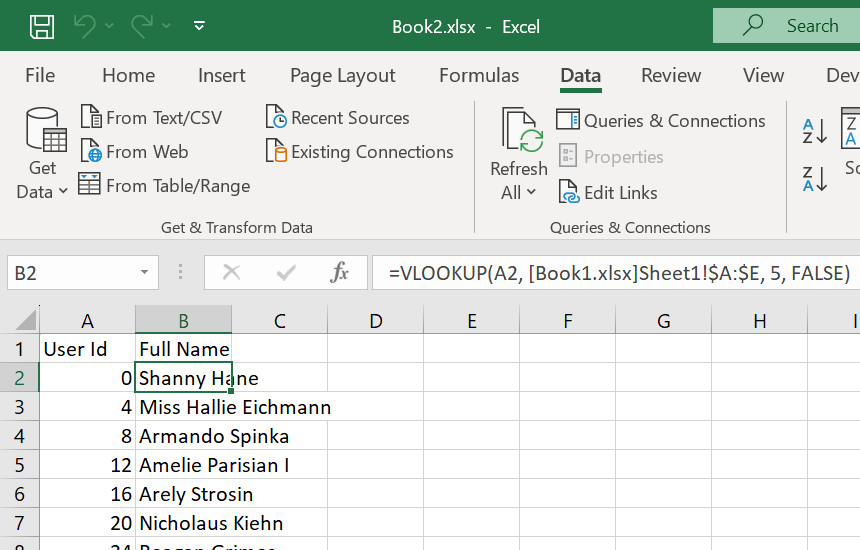
I saved Book2 without breaking the link to Book1. Then I might either move Book1 to another folder, or even delete Book1 completely. So now Book2 has an external reference to a non-existent workbook.
Next time if I run the same VLOOKUP formula again in Book2, it can still work, although not all look-up value can be returned and Excel will ask me to locate Book1.
The reason is, after Excel completed running the VLOOKUP formula, it also puts the data of Book1 (from cell $A$1 to cell $E$101 in the worksheet Sheet1) into Book2 itself. When Excel cannot locate the external reference, it will use the data within the current workbook instead.
I changed the file extension of Book2 from XLSX to ZIP and unpack the file to see what’s inside. There is a subfolder there under xl\externalLinks\ and this is where Excel stores the data of the external reference. There will be 1 or more files named externalLink*.xml, in which * is the number of external references of the workbook.
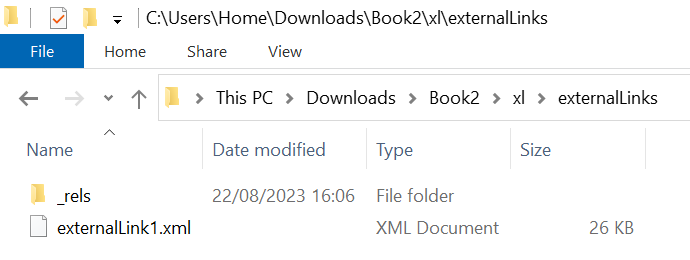
I wrote a simple script to convert these XML files into readable format, which later can be opened by Excel also. Here is a sample result:

As shown in above image, all of the data of the external reference Book1 are there within Book2, which is very handy if somehow Book1 becomes unavailable and we need to do something in Book2. However, if more and more external references present, the file size of the workbook will also become bigger.
Below is the script that I used. Just save the file as HTML file, open it using the latest version of your browser and follow the instruction there.

Related Posts



Subscribe
Login
0 Comments
Oldest